Method 01Recommended
Quarantine
Files move to an encrypted folder and can be restored for seven days. Space is freed when the window ends.
- 7-day undo
- Encrypted storage
- Full recovery
 01CleanReserve
A quiet disk cleaner for Mac. It finds the junk, lets you preview everything before it moves, and keeps a seven-day safety net so nothing ever really disappears.
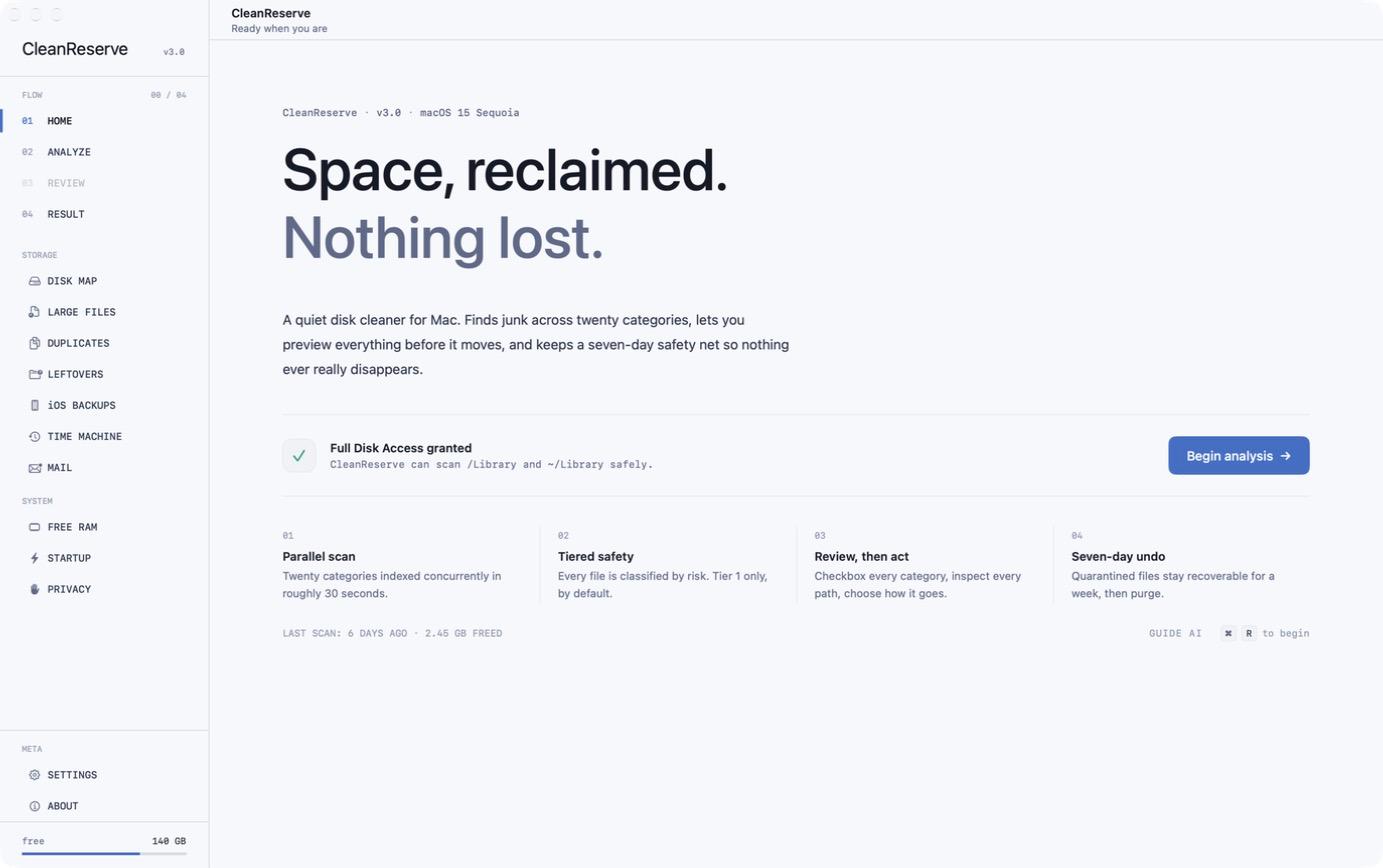
Start with a full analysis, or go straight to the tool you need. Every one of them shows you what it found before anything moves.
Also in the sidebar: iOS backups, Time Machine snapshots and Mail downloads.
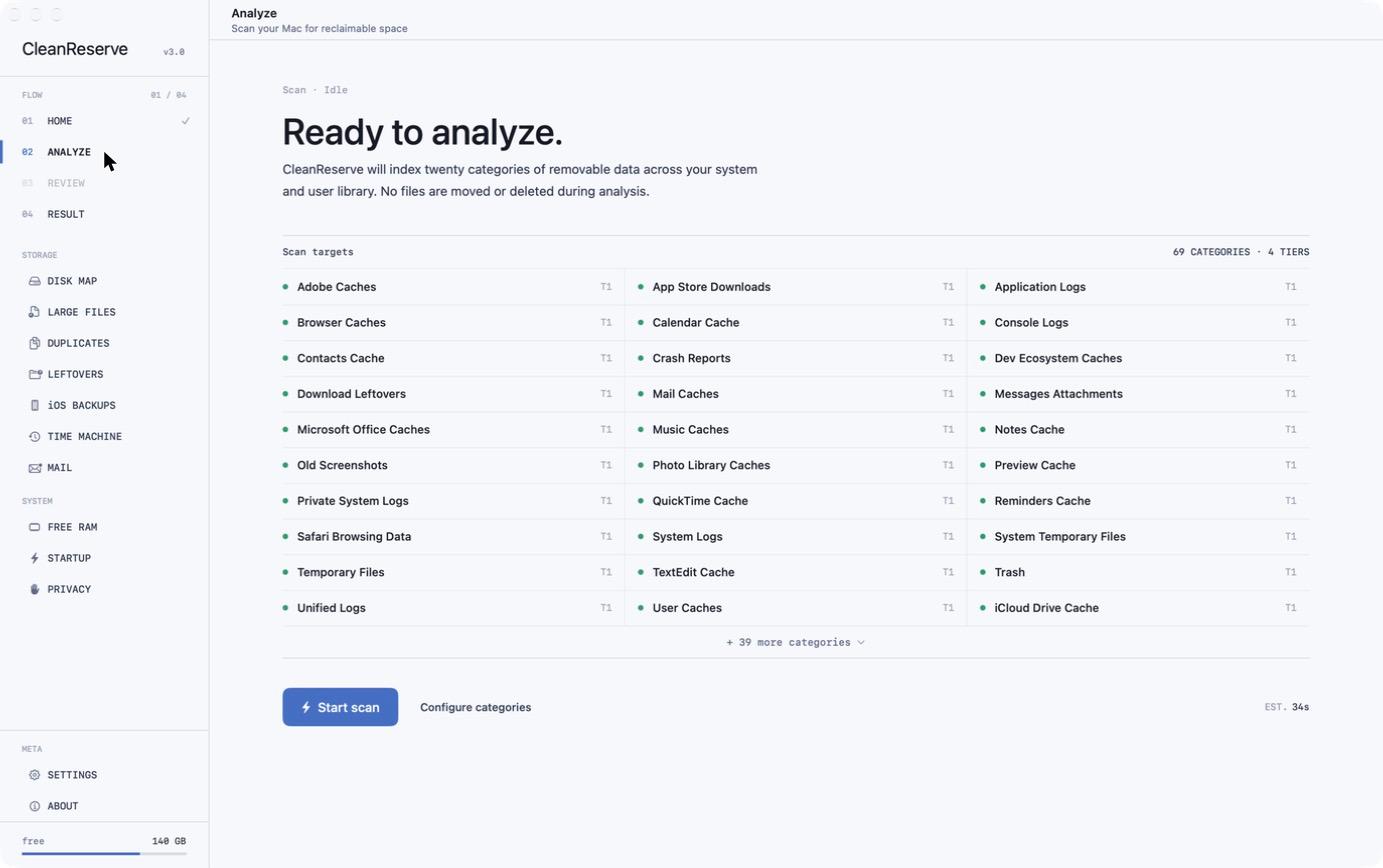
Nothing is removed until you've seen it and chosen how it goes. Every file is classified by risk, and only the safest tier is selected by default.
Scan caches, logs, Xcode DerivedData, simulators, browser data and temporary files. Every result is sorted by safety tier.
Expand any category to see individual files and their sizes. You decide exactly what goes — nothing is pre-checked beyond Tier 1.
Choose how files leave: quarantine with a seven-day undo, the macOS Trash, or a permanent delete.
Safest · on by default
Opt-in · larger wins
Advanced · use with care
Custom · your own paths
Files move to an encrypted folder and can be restored for seven days. Space is freed when the window ends.
Files move to the macOS Trash. Space is freed right away, and you can still recover them until you empty it.
Files are removed for good and the space is freed immediately. There is no undo — use it only when you're sure.
One disk image for your Mac. Open it, drag CleanReserve to Applications, and run your first analysis in under a minute.
CleanReserve.dmg
2.6 MB · DMG
CleanReserve User Guide.html
45.6 KB · HTML
Open the downloaded DMG and drag CleanReserve into your Applications folder.
CleanReserve isn't from the App Store, so macOS warns you the first time. Go to System Settings → Privacy & Security and click Open Anyway.
In the same Privacy & Security pane, turn on Full Disk Access for CleanReserve so it can scan protected folders.
Click Begin analysis. Nothing is moved until you review the results and choose a method.
Still unsure about something? Write to contact@guideai.online.
Yes. Every file is sorted into a safety tier, and only Tier 1 — the safest — is selected by default. You preview everything before cleaning, and Quarantine keeps files recoverable for seven days. Nothing is permanently deleted unless you choose the Delete method yourself.
Tier 1 covers user caches, browser caches, system logs, Trash and download leftovers. Tier 2 adds larger developer and backup data such as Xcode DerivedData, iOS Simulator files, Time Machine snapshots and old iOS backups. Tier 3 covers advanced system caches, and Tier 4 is any folder you add yourself. Separate tools handle large files, duplicates, app leftovers, startup items and browser privacy.
macOS protects folders such as /Library/Logs and parts of ~/Library. Without Full Disk Access, CleanReserve can only scan your user folders and misses a lot of reclaimable space. It only reads and reports — nothing changes until you confirm a clean.
Quarantined files are moved to an encrypted folder (~/.CleanReserve/Quarantine, AES-GCM) and kept for seven days by default. Use Undo Last Clean to restore them. After the window, they're purged automatically.
CleanReserve is distributed directly rather than through the App Store, so macOS asks you to confirm the first launch. Open System Settings → Privacy & Security, find “CleanReserve was blocked” and click Open Anyway.
No. All scanning and cleaning happens on your Mac. The app doesn't collect usage data and works fully offline. (This website uses Google Analytics — see the privacy policy.)
No. CleanReserve only works when you start a scan or open one of its tools. It's a native SwiftUI app and doesn't run in the background.
With Quarantine, restore it within seven days using Undo Last Clean. With Trash, take it back out of the Trash before you empty it. Delete can't be undone, so review the preview carefully when you use it.
Fix grammar and tune tone instantly, right where you write.
Explore GrammAssistStructured Pomodoro-style sessions. One button, zero setup.
Explore FocusTimeTrack shared trip expenses and settle up in a couple of taps.
Explore TripSplitDownload CleanReserve, run one analysis, and see how much space you get back. Found a bug or have an idea? Tell us — that's how the next version gets better.